MULDOON

WordPress · Domain mapping · v2.0

MULDOON The Multi Domain Name Mapper

Point any extra domain or subdomain at a WordPress page, post, or archive without redirects. The mapped domain always stays in the visitor's address bar.

  • No redirect, no iframe
  • Yoast & RankMath ready
  • Zero-migration upgrade

How it works

One mapping. Every descendant path follows.

Map a domain to a WordPress path and Muldoon handles the rest transparently. Visitors see the mapped domain; WordPress serves content from the underlying path; every internal link (navigation, pagination, archives) is rewritten to the mapped domain.

Visitor accesses Served from
www.product-a.com/ www.mainsite.com/product-a/
www.product-a.com/faq/ www.mainsite.com/product-a/faq/
www.product-a.com/blog/hello/ www.mainsite.com/product-a/blog/hello/

Handles http/https and www/non-www automatically, so one entry per domain is enough.

Capabilities

Everything you need to set up a domain alias

Core mapping

  • Domain stays in the address bar, no redirect, no iframe
  • Rewrites pages, posts, CPTs, archives, categories, feeds & nav menus
  • Multiple mappings; all descendant URIs map automatically
  • Core, Yoast, & RankMath XML sitemap compatibility
  • Elementor preview URL compatibility

Per-mapping options

  • Active / inactive toggle without deleting
  • 301 redirect & noindex on the original path
  • Pass-through for unmatched paths
  • Site name, tagline & default OG image override
  • Custom <head> code, GA4 / GTM, live connection test

SEO

  • Single canonical tag on the mapped domain
  • Yoast & RankMath canonical rewriting, no duplicates
  • og:url replacement for Yoast & RankMath
  • Mapped-domain URLs in core, Yoast & RankMath sitemaps
  • REST API domain replacement

Administration

  • Admin-bar badge for the active mapped domain
  • Import / export mappings as JSON
  • Drag-to-reorder mapping rows
  • Auto cache-flush: WP Super Cache, W3TC, WP Rocket, LiteSpeed, WP Engine
  • Developer hooks: muldoon_action_ / muldoon_filter_

In the admin

Manage every mapping from one screen

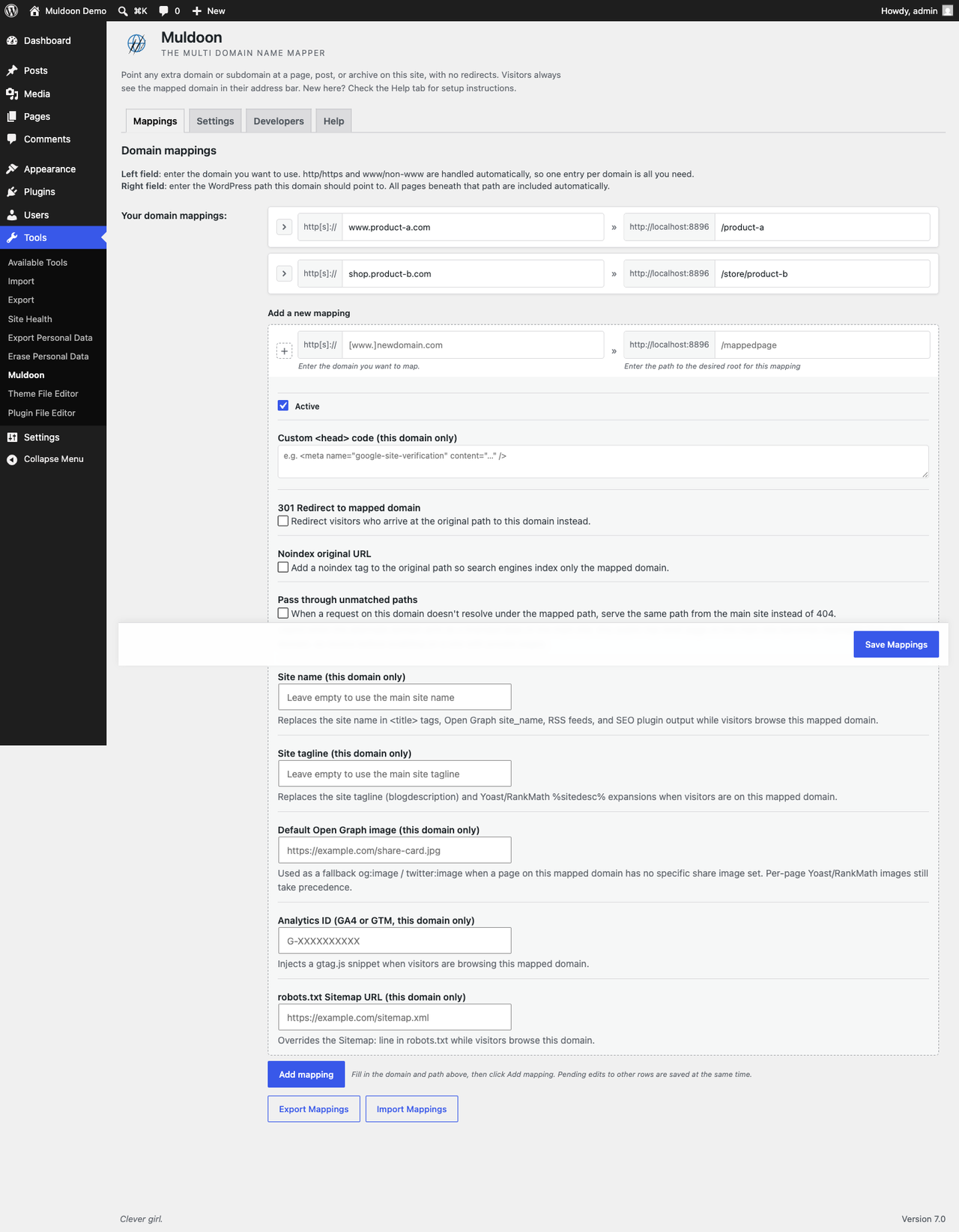
Everything lives under Tools → Muldoon: domains on the left, paths on the right, with per-mapping SEO and branding options a click away.

wp-admin/tools.php?page=muldoon
Muldoon admin screen showing two domain mappings and the per-mapping advanced options panel

Get started

Install in under a minute

  1. 1

    Download the plugin

    Grab muldoon.zip from the latest release.

  2. 2

    Upload & activate

    In WordPress: Plugins → Add New → Upload Plugin, choose the zip, install, and activate.

  3. 3

    Add a mapping

    Open Tools → Muldoon, enter the additional domain on the left and the WordPress path on the right, and save.

Before you configure: drop a test.txt in your WordPress root and confirm it loads from both yourmain.com/test.txt and youraddon.com/test.txt without redirects. On nginx, switch PHP Server-Variable to HTTP_HOST in the Settings tab.

Questions

Frequently asked

Does Muldoon use redirects or iframes?

No. Muldoon maps the domain transparently. Visitors see the mapped domain in the address bar while WordPress serves content from the underlying path, with no redirect and no iframe.

What do I need to map a domain to WordPress?

Each additional domain's DNS A-record must point to the same IP as your main domain, and the domain must be routed to the same WordPress root directory (virtual host, domain alias, or parked domain).

Does it work with Yoast SEO and RankMath?

Yes. XML sitemaps list the mapped domains, og:url is patched, and the canonical is rewritten to the mapped domain with no duplicate tag for both Yoast SEO and RankMath.

Does it work with page builders like Elementor?

Yes, including Elementor. If a page builder fails to load mapped pages in the editor, enable Enhanced Compatibility Mode in the Settings tab.

Is it compatible with WooCommerce or Multisite?

WooCommerce is not reliably supported; it uses many non-standard link functions. Multisite is not supported either, since it has built-in domain mapping; Muldoon targets single-site installations.

Will upgrading keep my existing mappings?

Yes. The 2.0 rebrand changed user-facing names only. Internal identifiers are unchanged, so existing installs keep every saved mapping and setting with zero migration.
What visitors see never changes.

Free, GPLv3, and open source.